How to Use the AgriFleet Platform
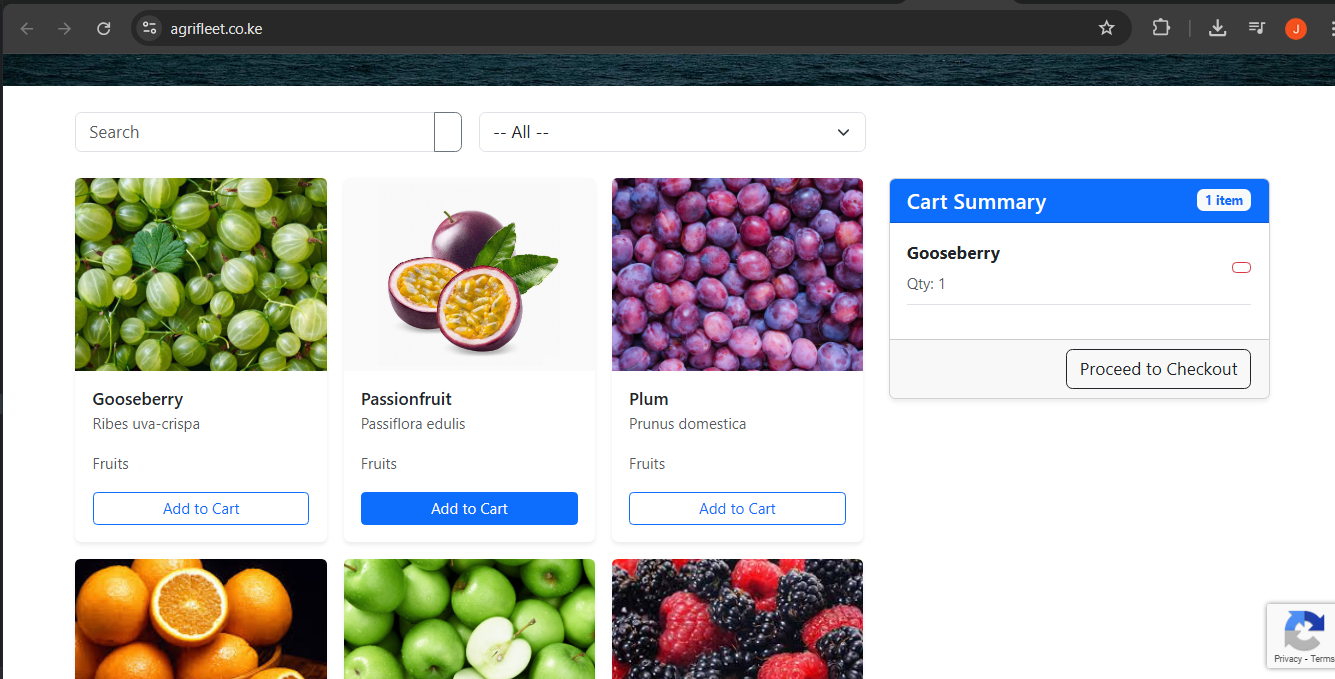
Step 1: Filter & Add to Cart
On the home page, use the filter and search tools to select your preferred product varieties. Click "Add to Cart" to auto-populate the cart summary on the right. Once ready, click the “Proceed to Checkout” button.
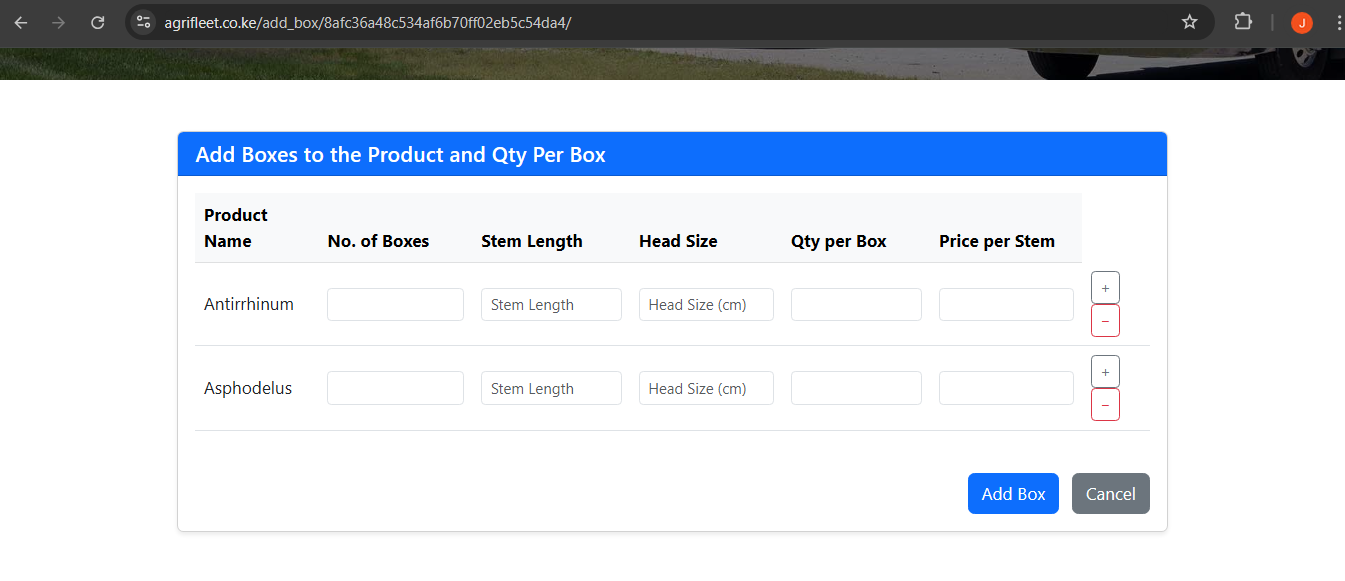
Step 2: Enter Details & Add Boxes
Enter your name and email in the modal window. Then for each product variety, enter the quantity per box and the number of boxes. Click “Add Box” to save each entry.
On your right you have a "+" which you can use to duplicate the variety you are working with incase of unqiue attributes. The "-" is used to remove the item.
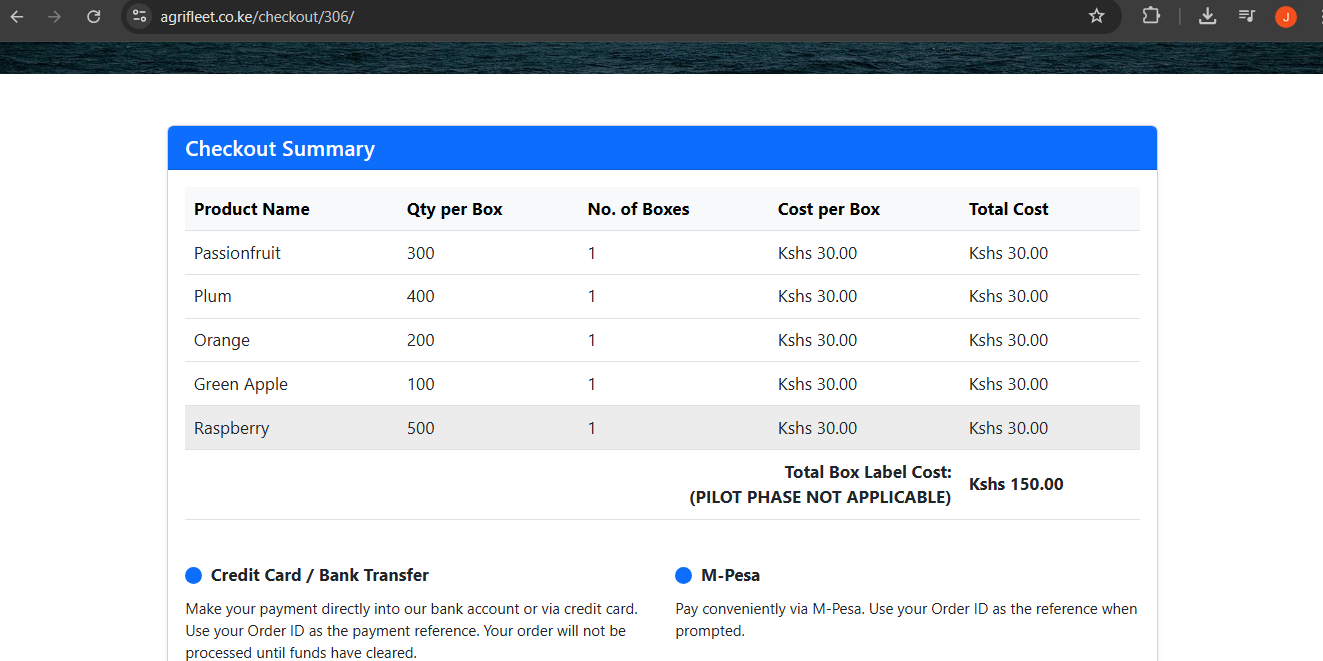
Step 3: Select Payment Method
Select your preferred payment method. Upon clicking the Email Summary PDF " button an email will sent with the shipment order in an invoice form if you included prices.You shall then be redirected to the payment page.

Step 4: Track All Orders Page
Look at step 6
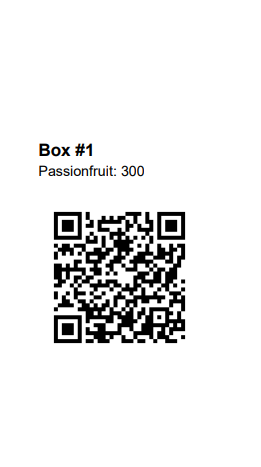
Step 5: Scan Labels
Enable Wi-Fi or mobile data on your phone and scan each label at your scan locations. Once 100% of the boxes in an order are scanned, an email summary is automatically sent to the email you used during checkout.
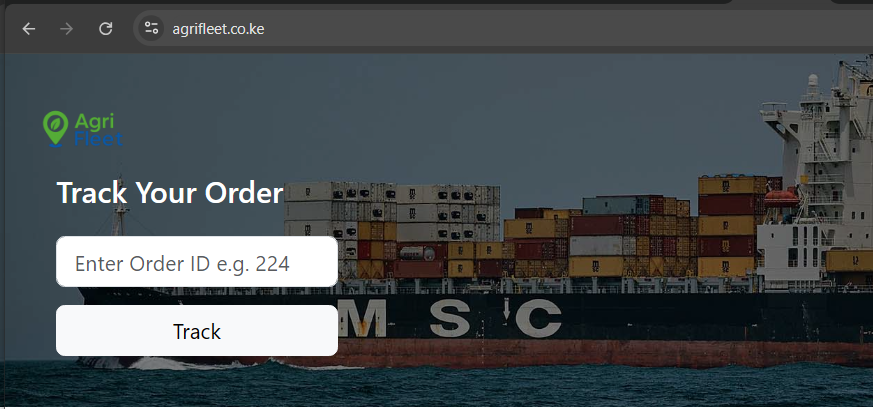
Step 6: Track Your Order
Visit the “Track Order” page to check scan status or reprint any broken labels. This id done via the home page using the order number you got for your consignment. You can also print/reprint the entire consignment if needed. Zebra printer payments still apply for production reprints.